Note
Since I’m using Debian Testing, I unfortunately couldn’t (or at least not easily) use the Steam Guide on how to get TruckersMP running under Linux, because Debian’s Testing repository has an important dependency for SteamTinkerClient, yad, that’s versioned differantly than normally (0.40.x ≠ 14.x), so I did it differently. Generally, though, I would actually recommend the Steam Guide, as long as you don’t have the same problem as me. The decision is yours :-)
1. Download TruckersMP
Log in with your TruckersMP Account and download the Installer .exe download
2. Add it under “Add non-Steam game”
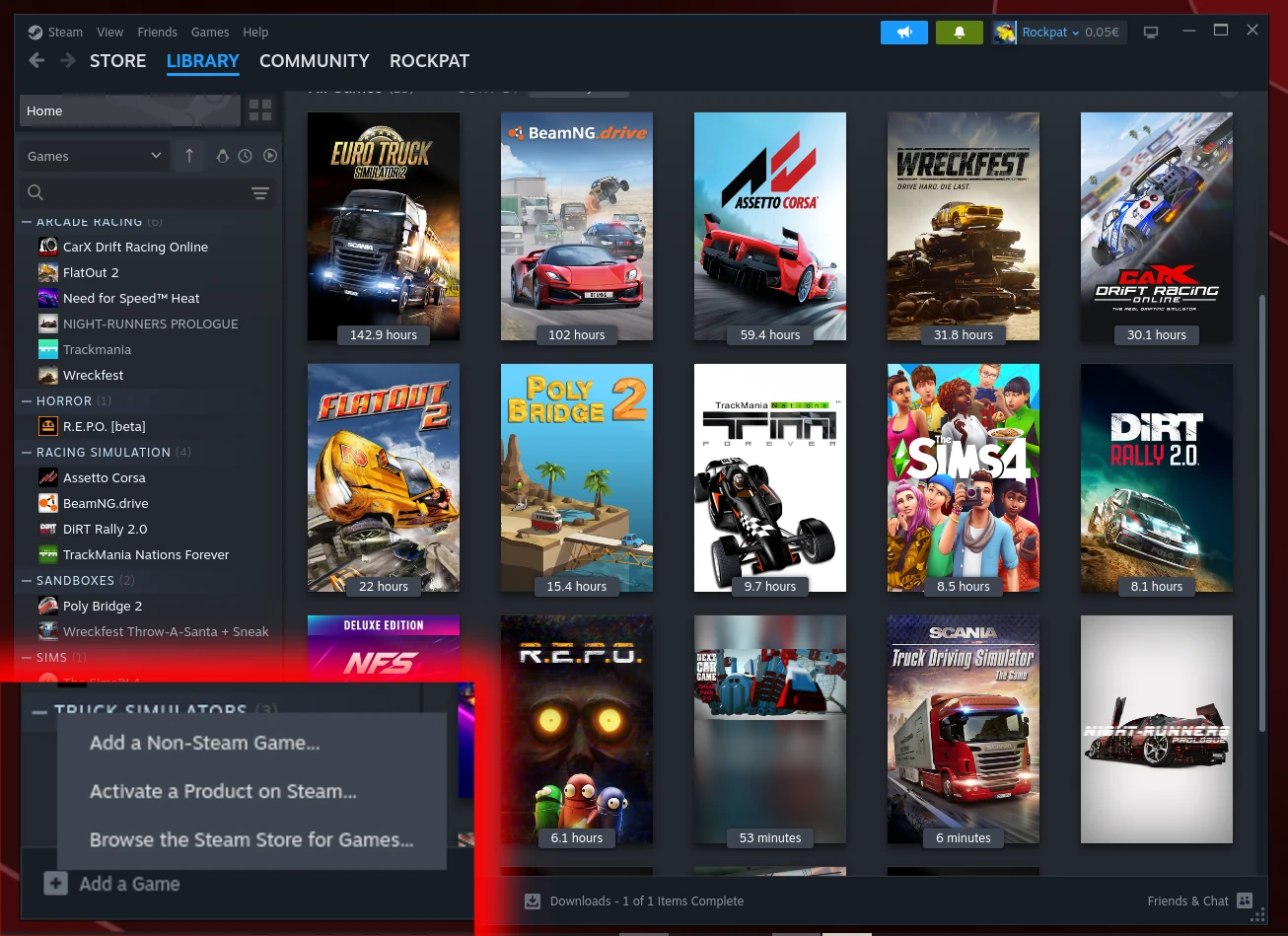
Then click the “Browse” button, add the TruckersMP installer .exe, and run the installer. Click “Start Game” and wait patiently :-)
3. Fine-tuning & Clean Up
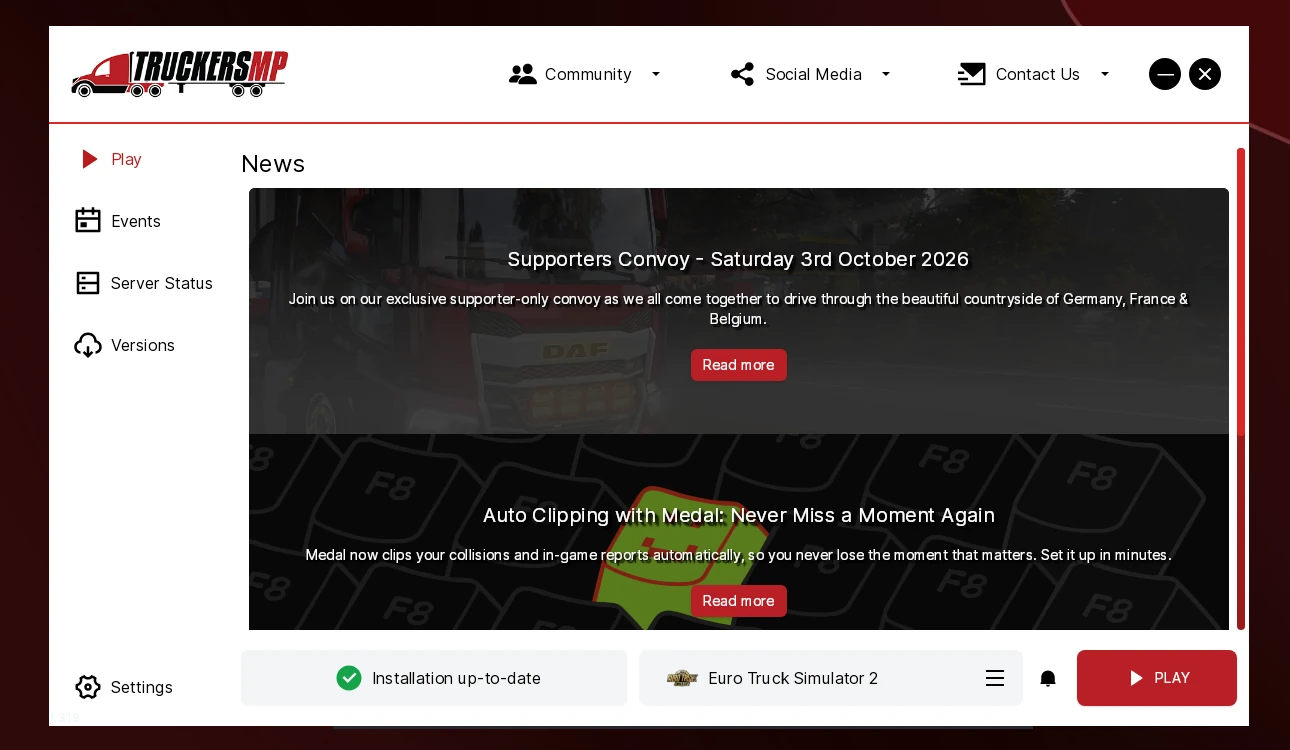
Once the TruckersMP Menu is displayed, we need to finalize TMP’s configuration and clean up the system by:
switching to Dark Mode by navigating up or down in the “Theme” section of the TMP settings using the arrow keys.
Adjust the Steam Paths in TruckersMP.
For example, mine looks like this:
Z:\home\jakub\.steam\debian-installation\steamapps\common\Euro Truck Simulator 2
Very IMPORTANT: Change this in Steam
TruckersMP > Manage > Properties > Shortcut (Target)
$HOME/.steam/debian-installation/steamapps/compatdata/3197606417/pfx/drive_c/users/steamuser/AppData/Local/TruckersMP/TruckersMP-Launcher.exe
This ensures that Steam runs the installed TruckersMP, not the installer, which you can delete after this step.
TruckersMP > Manage > Properties > Customization > Artwork
Finally, change and customize all four artworks so that TruckersMP doesn’t look shabby in your Steam library.
And there you have it, TruckersMP is now running on your Linux system!